Every setting lives in a single config.json file. The tray menu is a shortcut for the handful of options you change most often — flipping a toggle there writes the matching config.json field — but config.json is the full surface, including settings with no tray equivalent.
Location of the config.json file under the app data directory:
- Windows:
%APPDATA%\com.anothersava.claude-code-dashboard\ - macOS:
~/Library/Application Support/com.anothersava.claude-code-dashboard/
The tray’s Open config/logs location shortcut opens this folder. The widget hot-reloads config.json on save — no restart needed except when changing server_port.
Tray menu
Right-click the tray icon for the controls you reach for most.
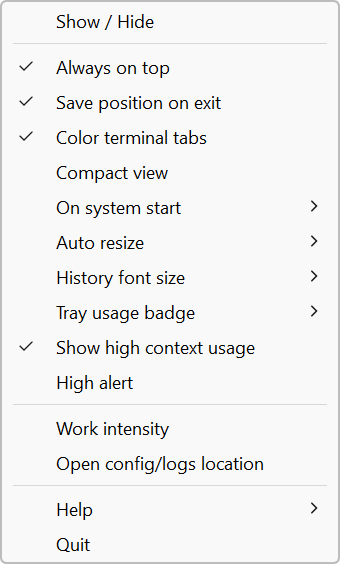
- Show / Hide — toggle the window (also a left-click on the tray icon).
- Always on top — keep the widget above your other windows.
- Save position on exit — reopen where you left it, at the same size.
- Color terminal tabs — show each session’s status as a symbol in its terminal tab title.
- Compact view — hide each row’s current prompt and time-in-state, and collapse the usage bars down to their bare percentage.
- On system start — launch at login: off, open the window, or start hidden in the tray.
- Auto resize — fit the window height to its content, growing upward or downward. The widget owns its height while this is on, so dragging its top or bottom edge does nothing; the sides still resize the width.
- History font size — pick one of five sizes for the history window.
- Tray usage badge — show the 5-hour or 7-day usage on the tray icon, as the recolored traffic light or a number (or none).
- Keep awake while working (macOS) — stop the Mac’s idle timer sleeping it while an agent is still working (on by default). Holds off only the idle timer, so the screen still sleeps and closing the lid still works as usual. See Features.
- Keep awake with lid closed (macOS) — stop the Mac sleeping when you shut the lid while an agent is still working: off, only on battery, or always, plus a Start now button that holds once regardless. The title shows how long a hold lasts, and the first time you use it you’re asked for your password. See Features.
- Show high context usage — flag a session that’s filling its context window on the tray icon (on by default). Has no visible effect unless a tray usage badge is on.
- High alert — send every configured state notification (blocked, done, error) to Telegram the instant it happens, skipping the usual delays (off by default). Doesn’t affect the context-usage or usage-limit alerts.
- Work intensity — open the Work intensity chart.
- Open config/logs location — open the app data folder.
- Help — About shows the version and a link to these docs; Connect instructions brings back the setup panel with the hook snippet.
- Quit — close the widget.
Config file
Every field is optional — omit one and the built-in default applies. A complete config with those defaults, roughly ordered from the settings you’re most likely to change to the ones you’ll rarely touch:
{
  "always_on_top": true,
  "history_font_size": "regular",
  "intensity_axis_max_tokens": 1000000,
  "intensity_halving_drop": 0.25,
  "intensity_doubling_drop": 0.5,
  "intensity_min_week_tokens": 1000000,
  "auto_resize": "none",
  "compact_mode": false,
  "tray_badge": "none",
  "tray_context_alert_enabled": true,
  "tray_context_alert_percent": 80,
  "terminal_titles": true,
  "terminal_title_context_percent": 50,
  "detect_cancelled_turns": true,
  "reap_exited_sessions": true,
  "stop_session_processes": true,
  "attention_tracking": true,
  "clean_hide_after_ms": 1800000,
  "restore_sessions": true,
  "waiting_settle_ms": 600000,
  "idle_close_ms": null,
  "remote_session_script": null,
  "remote_attach_script": null,
  "tab_tints": { "model": { "colour": "purple", "on": "name" }, "remote": { "colour": "gray", "on": "icon_and_name" } },
  "instruction_canary_enabled": false,
  "save_window_position": true,
  "window_position": null,
  "history_window_position": null,
  "history_window_maximized": false,
  "autostart": true,
  "start_minimized": false,
  "projects_root": null,
  "notifications": {
    "telegram": {
      "bot_token": null,
      "chat_id": null,
      "states": {
        "done":     { "afk_window_ms": 60000 },
        "blocked": { "afk_window_ms": 60000, "reaction_window_ms": 120000 },
        "error":    { "afk_window_ms": 60000, "reaction_window_ms": 60000 }
      },
      "context_alert_percent": 80,
      "limit_reset_percent": 90,
      "stale_tab_alert_ms": null,
      "shared_row_alert_ms": 60000,
      "reading_speed_cps": 10
    }
  },
  "context_window_tokens": {
    "claude-opus": 1000000,
    "claude-sonnet-5": 1000000,
    "claude-fable": 1000000,
    "claude": 200000
  },
  "usage_colors": { "green": "#5ad278", "amber": "#f0c846", "red": "#ff5a5a" },
  "token_gradient": false,
  "benign_closers": ["What's next?", "or are you good?", "or leave it?", "or leave it parked?", "or leave that to you?", "or are you set to check it yourself?", "what would you like to work on?", "what would you like to work on next?"],
  "benign_openers": ["anything"],
  "continuation_prompts": ["go", "continue", "proceed", "yes", "y", "yeah", "yep", "yup", "ok", "okay", "sure", "go ahead", "do it"],
  "limit_bar_segments": 16,
  "usage_limits_poll_interval_seconds": 600,
  "usage_reset_poll_delay_seconds": 30,
  "idle_awake": true,
  "idle_awake_silence_ms": 1800000,
  "lid_awake_mode": "off",
  "lid_awake_minutes": 15,
  "lid_awake_release_grace_ms": 60000,
  "lid_awake_battery_floor_pct": 20,
  "high_alert": false,
  "sync": {
    "device_name": "",
    "listen": false,
    "listen_port": 9078,
    "bind_scope": "tailnet",
    "peers": [],
    "token": null,
    "accept_messages": false,
    "peer_identity": {}
  },
  "server_port": 9077
}
Window and startup
Set autostart through the tray’s On system start submenu — it writes both the OS launch entry (Windows registry / macOS LaunchAgent) and the autostart field below, so there’s no need to edit the file by hand.
always_on_top— keep the widget above other windows.history_font_size— history-window text size, one of"smallest","small","regular","large","largest".intensity_axis_max_tokens— how many tokens in a 10-minute slice make a half-height bar in the Work intensity chart. Shorter and taller bars followintensity_halving_dropandintensity_doubling_drop, and no bar ever runs off the top. Lower it to give ordinary work more of the height; raise it to spread the peaks further apart.nullor0restores the default.intensity_halving_drop— how steep that chart’s scale is below the half-height value: the share of its height a bar loses each time its token count halves. At0.5half the tokens draw half as tall; smaller values make quiet slices stand out more. Anything not strictly between 0 and 1, ornull, restores the default.intensity_doubling_drop— the same above it: the share of the remaining gap to the top a bar closes each time its token count doubles. Smaller values keep busy slices further from the top. Anything not strictly between 0 and 1, ornull, restores the default.intensity_min_week_tokens— how much work a week must hold for the chart’s history to start there. The oldest weeks it can reach are usually a trickle — a session or two, drawing as an empty row — so they’re left out, and the history begins at the first week with real work in it. Only those leading weeks are skipped: a quiet week between two busy ones always shows.nullrestores the default;0shows every week there is any record of.auto_resize— fit the window height to its content:"up"grows from a fixed bottom edge,"down"from a fixed top edge,"none"leaves the window manually sized. Under"up"and"down"the height stops being draggable; the width doesn’t.save_window_position— remember each window’s position and size on close. The saved geometry lives inwindow_position,history_window_position, andhistory_window_maximized, which the widget manages for you — no need to edit them by hand. If the monitor a window was saved on is later disconnected or rearranged, the widget pulls it back onto a visible screen so it can’t get stranded off-screen.autostart— whether to launch at login. The OS launch entry does the actual starting; this records that you asked for it, so the widget can put the entry back if something else removes it. On macOS an app update through Homebrew does exactly that. Turning autostart off in your system’s own login-items settings is left alone.start_minimized— when launched at login, stay hidden in the tray. Set it through the tray’s On system start → Open to tray; it’s ignored on a manual launch.
Session identity
projects_root— the folder your projects live under. Sessions beneath it get short, folder-relative names instead of bare folder basenames. See Features → session identity.
Compact view
compact_mode— hide each row’s current prompt and time-in-state, and collapse the 5h/7d usage bars down to their bare percentage. Toggled from the tray’s Compact view checkbox. Off by default. See Features.
Color terminal tabs
terminal_titles— mirror each session’s status onto its terminal tab as a symbol next to the session name (🔵 working, ⏳ background work still running, ✋ blocked on you, 🟢 finished and unread, ⚪ finished and you’ve read it, 🔴 error, ⚫ nothing left in it). On Windows the same title shows in agwinterm’s sidebar, which names each session after it, and the session’s current prompt goes on the dim line beside its name (with an agwinterm build whose sessions are named after their titles). On macOS agterm takes the prompt the same way, on the context line in the title bar of its window’s active session (agterm 0.26.0 or newer, the release that gave a session a context line). Turning this off clears that line on either. See Features → color terminal tabs.tab_tints— Mac only for now: how agterm colours a session’s row in its sidebar.modelis used while a session runs a model other than the oneANTHROPIC_MODELnames in your Claude Code settings, andremotefor a⇄tab showing your other machine’s session the rest of the time. Each takes acolour(red,orange,yellow,green,blue,purpleorgray) and where it shows,on(icon,nameoricon_and_name);nullleaves that case uncoloured. Any other agent tab is left uncoloured. Defaults:modelpurple on the name,remotegray on the icon and name. Needs agterm 0.39.0 or newer.terminal_title_context_percent— once a session’s context usage reaches this percent of its model’s window, append it to the terminal tab title as ` [N%](e.g.🔵 printlab [67%]), so a tab filling toward/compactstands out.nullor0turns the number off (the status symbol and name still show); it needsterminal_titles` on to appear at all.
While a session works, Claude Code writes its own spinner title into the tab, which can replace the status. Set CLAUDE_CODE_DISABLE_TERMINAL_TITLE=1 in the environment you start Claude Code from to turn that off.
If you run Claude Code inside tmux, the tab, and agwinterm’s sidebar, don’t change until tmux is told to pass the pane’s title on: add set -g set-titles on and set -g set-titles-string '#T' to your tmux configuration. Keep the string exactly #T — the widget reads tab titles back to tell which session you’re looking at, and tmux’s default puts the session and window names in front of the status, which stops it recognizing them. A session started on a tmux server that is already running gets the server’s environment rather than your shell’s, so set the variable above in the command tmux runs for it. From WSL, also list it in WSLENV (WSLENV=CLAUDE_CODE_DISABLE_TERMINAL_TITLE:$WSLENV), because WSL hands a Windows program only the variables WSLENV names.
Behavior
detect_cancelled_turns— settle a row back out of the working state, or out of a question or permission prompt you dismissed, when its turn was cancelled with Esc, returning it to wherever it was before that turn — a question it was waiting on, otherwise DONE — so a cancelled reply doesn’t get mistaken for a new task. Cancelling emits no event; the dashboard recognizes it from the marker Claude Code writes into the conversation transcript, which is there even for an instant cancel that produced no output. On by default. Turn it off to leave a cancelled row showing as working until the next prompt.reap_exited_sessions— remove a session’s row once you’ve quit it (typedexit, pressed Ctrl-D, or closed the terminal). Quitting that way doesn’t reliably tell the dashboard the session ended, so the row would otherwise linger — often stuck showing “working” if you quit mid-turn. The dashboard removes it once it confirms the session’s process is gone. On by default. Turn it off to keep rows until you clear them or restart the app. The switch only decides whether a row goes when the last session in it quits: a session that quits stops counting toward its row either way, so another session still running in the same folder keeps the row.stop_session_processes— stop what a session leaves running once it ends, however it ended: closed by the dashboard, quit withexitor Ctrl-D, or its tab or terminal closed. That covers the dev servers the deploy started for it, along with their tailnet addresses, and anything else the agent started that would keep running. A/clearstops nothing, since the session goes on, and nothing stops while another session is still running in the same folder. Where the hook reports no agent process, as on a node-based install, only the dev servers are stopped. On by default. Turn it off to keep a dev server running after you quit the agent.attention_tracking— turn a finished session’s badge grey once you’ve read it, so a green DONE means “finished, and you haven’t looked”. Opening a row’s history counts as reading, and so does leaving that session’s terminal tab — no typing needed. The terminal tab follows too, 🟢 becoming ⚪. Leaving a tab counts in agterm on macOS, and in Windows Terminal and agwinterm on Windows; a session running in some other terminal stays at full color until you open its history or it does something new. With sync on, a session you read on one machine goes grey on the others too. Each machine reports what it saw on its own screen, including a tab here that reaches the other machine’s agent over SSH or tmux — those count only where your attach puts a⇄in front of the title, which is what tells them apart from this machine’s own session of the same name. So this switch governs what this dashboard shows and what it tells the others about what it saw, and turning it off here leaves every row here at full color however much the other machine has seen. Notifications for finished work follow the same rule: a ping sent while you were away is deleted once you read that session, and no further one is sent for it. A session waiting on you keeps its own alerts either way. On by default. Turn it off to show every finished row the same way.clean_hide_after_ms— how long a session with nothing left in it stays on the widget before dropping out of view. A session goes clean when you wipe its context with/clear, when it starts fresh, or when an already-clean one pulls changes for an agent on another machine and finds nothing to report: there is nothing on it to come back to, so after 30 minutes (the default) it stops crowding the rows that do want something. The delay is there so a session you’ve just cleared is still where you left it when you turn back to it. Only the widget hides it — the session keeps syncing to your other devices, keeps its terminal tab symbol, and an agent elsewhere can still reach it and send it work. Once the last row is hidden the widget says how many clean sessions it’s holding, rather than claiming there are no agents.nullor0keeps every clean row on screen.restore_sessions— bring your running sessions back after the app restarts, instead of starting empty and waiting for each one to do something. The dashboard only restores a session that is both still running on the machine and still labelled in your terminal, and it takes the status from that tab’s label — so a result you’d already read comes back read, and a session waiting on a question comes back as BLOCK rather than being invisible until you happen to check it. A session that was mid-task returns as working only if it still is, and as DONE otherwise. A session that started while the dashboard was closed, such as one your terminal reopened after a reboot, comes back too, labelled or not, as DONE (or CLEAN for a fresh or cleared conversation). Nothing restored this way sends a notification. Reading a tab’s label needs Color terminal tabs on, since the label is where the status survives the restart. Takes effect at the next start, like the other start-only settings. On by default. Turn it off to start with an empty widget.idle_close_ms— how long a session with nothing left in it can stay open before the dashboard closes it: the agent exits and its terminal tab closes with it. A finished session with a result in it is never closed, read or not. Everything else running in that tab ends with it, a dev server in a split pane included, which is the memory closing frees;stop_session_processesalso stops what the session started in the background. The conversation stays on disk, soclaude --continuein that folder picks it back up. It finds the session’s tab by its label, so it needs Color terminal tabs on, and it works in agterm on the Mac and in agwinterm on Windows (an agwinterm build from 0.20.13.2, which says when a session’s process has exited), and on Windows also closes a remote session no terminal on this machine is showing, whether the Mac has a tab open on it or nothing does. A remote session no terminal here shows is closed by typing/exitinto it; where the Mac has a tab on it, that tab closes too. A session you detached by closing its tab on Windows is one of these, since it keeps running with nothing showing it. In agwinterm it also types/exitinto the agent, so it skips the session on screen in agwinterm’s front window, where you could be typing. Either way it skips a session with something typed but not yet sent, from this machine or from the Mac. Keep it longer thanclean_hide_after_ms, which hides the row first; the dashboard logs a warning when it isn’t. An hour in a build you install from source; off in the downloadable app.nullor0turns it off.remote_session_script— Windows only: where the claude repo’scc-session.shlives, as a WSL path. With it set, a message to a project that isn’t running can start a session for it (see Starting sessions on request), and a session started for an agent on this computer opens as a background tab in agwinterm. Left empty, this computer can’t start one.remote_attach_script— Mac only: where the claude repo’smac/attach.shlives. With it set, a session the Windows machine starts because an agent on this Mac messaged it opens as a⇄tab in agterm’sremoteworkspace, in the background, so you can read and answer it here. A session already running in the background there gets the same tab when a message reaches it from an agent on this Mac, or from a Windows session a⇄tab here is showing, unless a⇄tab already shows it. Left empty, no tab opens, and cmd+shift+r still reaches the session.waiting_settle_ms— how long a row can sit in WAIT (background work still running) before the dashboard settles it to DONE on its own. WAIT normally clears when the background work finishes, but if you stop it yourself — say you kill a background dev server — nothing tells the dashboard, so the row would otherwise stay WAIT until your next prompt. This backstop clears it after the set time (10 minutes by default).nullor0turns it off.
Instruction adherence
An opt-in tripwire for an agent that has drifted from its standing instructions over a long conversation. See Features → instruction adherence.
instruction_canary_enabled— when on, each session is handed a rotating one-time token at startup and asked to end every reply with it (a small·…·tag at the end of each reply — it shows in the agent’s terminal, but the dashboard strips it from its own history and notifications); each time the agent finishes, the dashboard checks the final message for that token. A sustained miss flags the row with a ⚠ badge, adds a ⚠ to its terminal tab title, and sends a Telegram ping (when Telegram is set up) — a cue to stop trusting that session’s output and consider compacting or re-anchoring it. The flag clears the moment the agent’s next reply carries the token again. Off by default: it injects an instruction into every session and can ping.
Notifications
The notifications block controls alerts when a session needs you. Set it to null (or omit it) to turn notifications off entirely. Telegram is the only channel today:
bot_token/chat_id— your Telegram bot credentials; getbot_tokenfrom @BotFather.states— per-state notification rules, keyed by state ("idle","working","waiting","blocked","done","error"). A rule on"done"covers every finished turn, whether or not you’ve read it. A rule on"idle"covers a session with nothing left in it — cleared, and asking for nothing — so it’s rarely one you want. The"waiting"state is background work still running, and like"working"it is passive — both are left unconfigured by default. Each state takes two independent, optional windows in milliseconds, and alerts as soon as either is met:afk_window_ms— alert once you’ve been away from the keyboard/mouse this long and haven’t touched the machine since the state began. This is the “you stepped away and missed it” trigger: if you were at the machine when it happened, it stays silent (you saw it). Omit it to disable the away-detection for that state.reaction_window_ms— alert once the state has lasted this long regardless of whether you’re present — the backstop for something you need to act on but haven’t. Omit it for no backstop.- A state with neither window set, or a missing state key, never alerts. By default
doneis away-only (no backstop — a finished task you saw needs no nag), whileblockedanderroralso carry a reaction backstop.
reading_speed_cps— your reading pace, in characters per second, used to hold a notification back by however long the agent’s last message takes to read, on top of both windows above. A one-line “push?” is unaffected, but a page-full answer buys extra time so you aren’t pinged while still reading it — reading a long reply looks the same as being away (neither touches the keyboard), and this tells the two apart. A wall of text is capped at six minutes of extra delay so an alert always arrives eventually. The default10(≈100 words/min) is deliberately generous — lower it (e.g.8) for even more grace on long replies, raise it (e.g.20) for snappier alerts.nullor0turns the scaling off (the windows above apply as-is).erroris exempt — it reacts to its short failure line, not the surrounding output — so error alerts stay prompt.context_alert_percent— send a message when a session’s context usage crosses this percent of the active model’s window (the same percentage that colors the token counter). It fires once on crossing, and — like the question/state alerts — the message is deleted automatically once usage drops back below (a new task or/clear), so the chat only shows context warnings that are still current. It re-arms after a drop, so a later crossing alerts again.nullor0turns it off.limit_reset_percent— send a message when your 5-hour or 7-day usage window resets, but only if you’d used it to at least this percent — so you get a “you’re clear to resume” ping only when you’d actually hit the ceiling. Defaults to90;nullor0turns it off. It’s a one-off note (unlike the alerts above it isn’t auto-deleted). The reset is read from Anthropic’s usage data, so the ping lands within a poll cycle of the actual reset rather than the instant it happens. Your usage is account-wide: if you run the dashboard on more than one machine, each one sends its own ping — set this tonullon the extras if you’d rather not get duplicates.stale_tab_alert_ms— send a message when a session’s terminal tab has been showing a stale status for this long. The clock starts when the widget spots it, which for a tab renamed to the name it already had is only once the agent’s status next changes. A tab you rename yourself in Windows Terminal keeps that name for good and ignores what the widget writes to it, so it can sit on “done” while the agent is working — right-click the tab and choose Reset tab title and it follows again, which is something only you can do. Both kinds of rename are caught: accepting the name the box offers you, which leaves the tab showing a status that has stopped being true, and typing your own text, which leaves it showing no status at all. Only the tab in front of a window can be checked, and split tabs are skipped rather than guessed at. The row is marked with a ≠ the moment the widget notices, so this delay is your chance to spot it and fix the tab before your phone buzzes; the clock runs from when the tab was first caught. Like the context alert, the message is deleted once the tab catches up, the session ends, or you turn this off.nullor0turns it off. The default depends on where your copy came from: a build you deployed yourself starts at600000(10 minutes), while the downloadable releases start with it off — it reports a fault in your terminal that the widget can’t fix, which is useful once you know the feature and just a puzzling buzz on a fresh install. Set the field either way and your value wins.shared_row_alert_ms— send a message when two or more Claude Code sessions have been running in one folder for this long. They share one row, which can follow only one of them, so one is usually a session you meant to close. The message is deleted once only one is left, the row goes away, or you turn this off. Defaults to60000(one minute), long enough that a session a script starts in the folder for a few seconds never triggers it.nullor0turns it off.
high_alert is a top-level field (a sibling of notifications, not inside it), toggled from the tray’s High alert checkbox. When on, every configured state notification — blocked, done, error — is sent the instant the state is entered, skipping both windows above and the reading-time delay. It only accelerates states that already alert: a state you’ve silenced by zeroing both its windows stays silent. It doesn’t touch the context_alert_percent or limit_reset_percent alerts, which keep their own timing. Off by default.
Usage colors
usage_colors— the green/amber/red palette shared by every usage number: the limit bars (fill + percentage), the per-session token counter, and the tray icon number read green below 50%, amber 50–84%, and red at 85%+. Override any of the three (a partial{ "amber": "#…" }keeps the other two). The defaults are tuned bright enough to read as a ~16px tray digit — pick your own with that in mind if you change them.token_gradient— whentrue, the token counter interpolates smoothly betweenusage_colors(green→amber over 0–50%, amber→red over 50–85%) instead of the 3-color step. The limit bars are always a step. Defaults tofalse.context_window_tokens— context-window size per model, the denominator for the token counter’s percentage. Keys match by longest prefix, so the defaults above cover every Claude model — add an exact model id (e.g."claude-sonnet-4-6": 1000000) to override its family.
Prompt classification
benign_closers— polite trailing questions that end in?but shouldn’t flip a finished row to BLOCK. Matched case-insensitively as a suffix; a hit excuses the whole closing sentence, so an optional sign-off like “Want me to run the lint pass, or are you good?” stays DONE even though it opens with an offer. A genuine ask in an earlier sentence still blocks. Defaults:["What's next?", "or are you good?", "or leave it?", "or leave it parked?", "or leave that to you?", "or are you set to check it yourself?", "what would you like to work on?", "what would you like to work on next?"].benign_openers— words that, when they open the final question, mark it an optional offer rather than a hand-back, so a sign-off like “Anything you’d like to look at?” stays DONE. Matched case-insensitively as a prefix of the last sentence. An embedded real ask still flips to BLOCK, so “Anything else, or shall I commit?” still blocks. Default:["anything"].continuation_prompts— short replies that mean keep going or yes, go ahead rather than a new task (the defaults covergo/continue/proceedplus approvals likeyes/y/ok/sure), so the original prompt and work timer carry over instead of resetting. Matched exactly, case-insensitively, after trimming.
For the full classification logic see Classification and Sticky labels in the Development section.
Usage limit bars
limit_bar_segments— number of segments in the 5-hour / 7-day usage bars; higher is finer-grained. A plan with no 5-hour limit shows the 7-day bar alone, with twice this many.usage_limits_poll_interval_seconds— how often to poll Anthropic for usage. Clamped to a 60-second minimum. With multi-device sync on, a reading another device has just taken counts as this device’s poll, so only one device asks per interval.usage_reset_poll_delay_seconds— how many seconds after a usage window resets to re-poll, so the 5-hour / 7-day bars refresh promptly instead of briefly showing the old full bar. 30 by default.tray_badge— show a usage limit on the tray icon. Values:"none";"five_hour_light"/"seven_day_light"(recolor the traffic-light icon by usage);"five_hour_number"/"seven_day_number"(show the percentage, all-red light at 100%). The hover tooltip shows each limit your plan has. Set it from the tray’s Tray usage badge submenu. On a plan with no 5-hour limit, a 5-hour value is changed to the 7-day one in the same style.tray_context_alert_enabled— whether the tray icon flags high context usage at all (the Show high context usage tray checkbox; on by default). Turning it off keepstray_context_alert_percentintact, so re-checking it restores the same threshold.tray_context_alert_percent— flag the tray icon when any session’s context usage reaches this percent of its model’s window — an at-a-glance “an agent is filling its context” warning. The light modes draw a red border around the traffic-light icon; the number modes draw the digits over a red background.nullor0turns it off, and it never shows whentray_badgeis"none"(there’s no badge to frame) or when Show high context usage is unchecked.
Keeping the Mac awake while an agent works
macOS only. See Features for what this does.
idle_awake— whether the Mac is held awake while any local agent is working (the Keep awake while working tray checkbox; on by default). It holds off the idle timer only, so it can never stop the Mac sleeping when the lid shuts, the battery runs low or it overheats — which is why, unlike the lid setting below, it needs no password and installs nothing.idle_awake_silence_ms— how long a working session may go quiet before the Mac is allowed to sleep again, in milliseconds. Long by default (1800000, thirty minutes) because a single slow step looks the same as a stuck session from outside: a long build, and anything an agent hands to a sub-agent, both go quiet for their whole run. Letting go too early costs you the task; letting go late only costs battery, and the Mac still sleeps on a low battery regardless. The hold resumes when the session next shows a sign of life — for work handed to a sub-agent that is when the session picks up again afterwards, not while the sub-agent is still going, so a hold let go mid-run stays let go until that work finishes.nullor0keeps holding for as long as the session stays marked as working.
Keeping the Mac awake with the lid closed
macOS only. See Features for what this does and the one-time password prompt behind it.
lid_awake_mode— when a hold starts on its own."off"(default);"on_battery"(whenever an agent is working and you’re unplugged);"always"(whenever an agent is working, on any power source). The tray’s Start now begins a hold regardless of this,"off"included. The setting never changes how long a hold lasts — that’slid_awake_minutes, and it’s the same either way.lid_awake_minutes— how long the lid may stay shut before the Mac is allowed to sleep again, counted from the moment you close it. Reopening the lid resets it, so each leg of a journey gets a full window. Applies to every mode, and the tray submenu title shows the current value. 15 by default;0turns the feature off.lid_awake_release_grace_ms— how long to keep holding after the last agent stops working, so the pause between turns doesn’t put the Mac to sleep mid-errand. 60000 (one minute) by default.lid_awake_battery_floor_pct— never hold below this charge, and let go if the battery drops past it while holding. Holding off sleep also disables the low-battery safety sleep, so this stops a closed laptop running itself flat. 20 by default;0removes the floor.
Undoing the one-time setup
The first hold asks for your password once and installs two files: a rule in /etc/sudoers.d/ letting the widget flip the sleep setting without asking again, and a job in /Library/LaunchDaemons/ that clears that setting at every boot (it survives restarts on its own, so this is what guarantees a clean start).
Setting the mode to Off stops the feature and leaves both in place, so turning it back on costs no password. To remove them altogether:
sudo pmset -a disablesleep 0
sudo launchctl bootout system /Library/LaunchDaemons/com.anothersava.claude-code-dashboard.sleepreset.plist
sudo rm /Library/LaunchDaemons/com.anothersava.claude-code-dashboard.sleepreset.plist
sudo rm /etc/sudoers.d/claude-code-dashboard-lidawake
Run them in that order. Sleep is switched back on first because the setting survives restarts, and the two files you’re about to remove are what would otherwise clear it — take them away while it’s still on and the Mac won’t sleep at all.
Using the feature again afterwards reinstalls them, with one more password prompt.
Multi-device sync
The sync block shows sessions from your other computers — see Features → multi-device sync. The devices must be able to reach each other by address; across different networks the simplest way is a VPN like Tailscale. On each device, point peers at the other devices, turn listen on, and set the same token everywhere:
device_name— the name other dashboards show on this device’s session badges, and the machine named, lowercased, in this device’s Telegram messages ([my-project:laptop] done). Filled in from the computer’s hostname on first launch; edit it if you’d like a friendlier label.listen— accept session pushes from peers. Needs an app restart to change, likeserver_port.listen_port— port the sync listener uses (peers connect here). Also restart-required.bind_scope— how far the listener opens up."tailnet"(the default) keeps it on your Tailscale network and your own computer, and turns away anything else;"any"opens it to every network this computer is on, leaving thetokenas the only protection — use it only if your devices reach each other some other way. Also restart-required. On"tailnet", if Tailscale isn’t running when the widget starts, the listener still comes up on all networks and says so in the log, and it still turns away anything that isn’t on your tailnet; start Tailscale first, or restart the widget afterwards, to get the narrower setup back.accept_messages— whether this device accepts messages relayed from another device’s agents, which start a turn in the named local session, or start a new session for a trusted project that has none running. Off by default, and separate fromlistenon purpose: turning sync on buys a read-only view of what your sessions are doing, while this lets the shared password start prompts running inside them. Leaving it folded intolistenwould widen an existing setup the moment the widget updated, without you choosing it. Both devices need it on for messages to flow in that direction; a device with it off still syncs state normally and answers a relayed message with a refusal saying so.-
peer_identity— which Tailscale machine each of your other devices actually is, written as{"CHROME": "chrome"}: the name on the left is the other device’sdevice_name, the one on the right is its name on your Tailscale network. Empty by default.Without it, the widget takes another device’s word for who it is. The shared
tokencan’t settle that — every device uses the same one, so it proves somebody with the password is calling, not which computer. With a binding written, the widget asks Tailscale which machine the connection actually came from and turns away anything that doesn’t match, so nothing can push sessions onto your laptop’s name by claiming it.You need it on both devices, each naming the other. The two names are usually not the same — a Mac may call itself
Some-Laptop.localwhile Tailscale knows it assome-laptop— which is why it is written down rather than guessed. Find the Tailscale name withtailscale status(on macOS the command lives inside the app:/Applications/Tailscale.app/Contents/MacOS/Tailscale status).A device you leave out can still sync and message running sessions, unchecked, but it can’t start a session on this computer: a message to a project with nothing running is refused until the device is listed here. The widget shows which is which:
/api/agentsreports each peer asattestedorclaimed. peers— addresses of the other devices’ sync listeners, e.g.["http://my-laptop:9078"].token— a shared secret, the same string on every device; pushes without it are rejected. Sync stays fully off while it’snull.
A typical two-device setup — desktop: "listen": true, "peers": ["http://laptop:9078"], "token": "pick-a-long-random-string"; laptop: the same with "peers": ["http://desktop:9078"].
Starting sessions on request
A message can only reach an agent that’s already running. When an agent messages a project with nothing running in it, the widget on the receiving computer starts a session there. A message from one of your other devices is then delivered into it; an agent on the same computer is told the session is up and sends its message itself. It does so only when all of these hold:
- Exactly one folder on that computer matches the project’s name. If two do, nothing starts; set
projects_rootso their names differ. - Claude Code has been trusted in that folder. Open it in Claude Code once and accept the trust question.
- The message came from an agent on that computer, or from one of your devices listed in
peer_identity. accept_messagesis on.
Nobody approves a start. Any agent on this computer, and any agent on your other devices that has the shared token and is listed in peer_identity, can start Claude Code in a trusted folder at any hour with nobody at the computer — with your permission settings, your hooks and your files. That is no more than such a message can already do to a session that is running. Turn accept_messages off to stop both.
An auto_start.json that an earlier version left in the config folder is no longer read; deleting it changes nothing.
A session started this way is a normal one — an agterm tab in the project folder running claude the way your shell does, so it picks up --continue and everything else you’d get by hand. It opens in the agterm workspace where that project’s agent was last running; if that workspace has since been deleted, one of the same name is created for it. It stays after the conversation ends: quitting Claude leaves you at a prompt in that directory, and the tab is still there when you come back. On Windows the session starts inside the remote-session holder’s tmux server with no window open, the way one started from the Mac is, and you join it with claude in that folder or attach.cmd; that needs remote_session_script, and without it a start is turned away with a note saying so. When the message came from an agent on the Mac, the Mac opens a ⇄ tab on the new session in the background, if remote_attach_script is set there; when it came from an agent on Windows, agwinterm opens the tab.
Two things are refused rather than attempted, both because they’d otherwise leave a session stuck where nobody can see it: a folder Claude Code hasn’t been trusted in (it would stop at the trust question and wait forever), and a start while the display is asleep — the terminal can’t give the tab a screen, so nothing would run. The first is caught before anything is launched; the second only becomes visible once the session fails to appear, and the empty tab is closed rather than left behind.
Server port
server_port— port the embedded HTTP server listens on for hook events. Most users never touch this. Two caveats if you do: it needs an app restart to take effect (like thesynclistener settings, while everything else hot-reloads), and the Claude hook must point at the same port — it defaults to9077, so setTAURI_DASHBOARD_URL=http://127.0.0.1:<port>in the hook’s environment to match.