Gear popup (quick toggles)
The gear icon at the very left of the toolbar opens a popup containing:
- Every rendering toggle from the Settings page (Strip common prefix, Colour severity, Highlight field names, Bold message, Italic target, Dim timestamp/
=, Prettify values) - Scroll to latest on open
- Auto-resize inspect height (auto-fit the inspect overlay’s height to the current entry)
- Soft wrap inspect text (wrap long JSON values to the overlay’s width instead of overflowing)
- Soft wrap formatted text (wrap long formatted log lines to the editor width)
- Four Align radio items (None / Targets / Messages / Fields)
- Open full settings… — opens the Settings dialog directly at the JSONL Log Viewer page
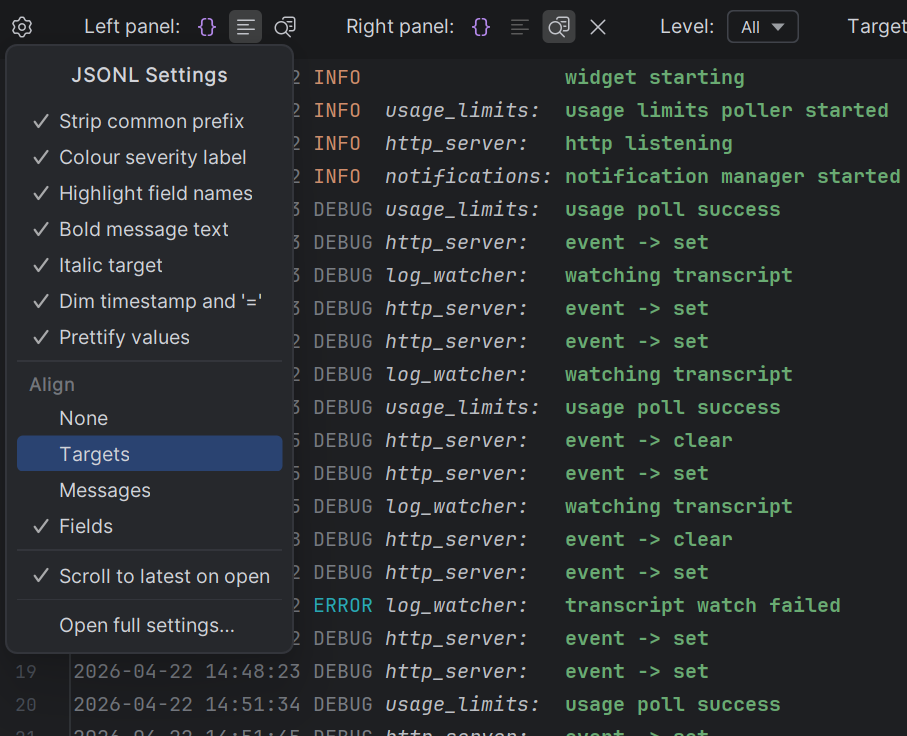
All gear-popup toggles and the Settings page share state, so flipping any toggle immediately repaints every open JSONL editor.
Settings page
File → Settings → Tools → JSONL Log Viewer
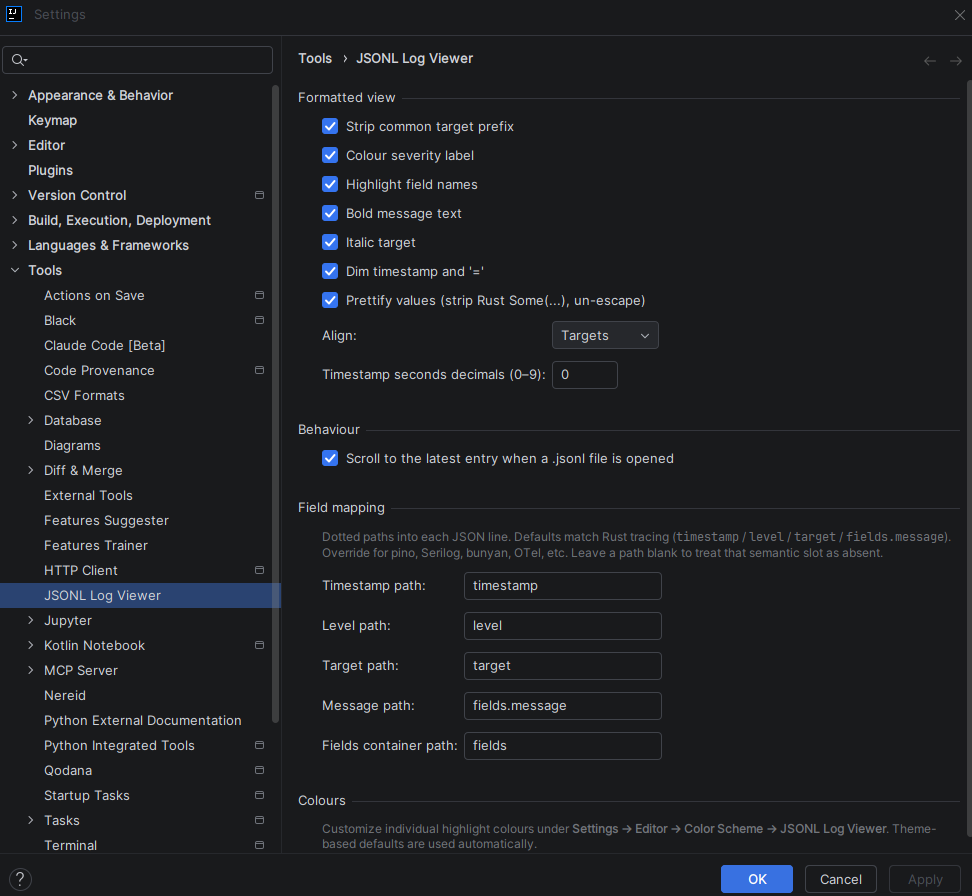
Formatted view
| Setting | Default | Effect |
|---|---|---|
| Strip common target prefix | on | Remove the longest common target segment from the display (ai_agent_dashboard_lib::http_server → http_server) |
| Colour severity label | on | Color the level token (ERROR, WARN, etc.) using the theme’s palette |
| Highlight field names | on | Color the key portion of every key=value pair |
| Bold message text | on | Bold font for the fields.message portion |
| Italic target | on | Italic font for the target + trailing : |
Dim timestamp and = | on | Subdued color for the timestamp and = separators |
| Prettify values | on | Strip Rust Debug Some(...) wrappers and un-escape \" / \\ inside debug-quoted strings. Values containing backslashes (paths) render raw |
| Align | Targets | Alignment level: None / Targets / Messages / Fields. Cascading — each level includes the previous |
| Timestamp seconds decimals | 0 | Integer 0–9 for the fractional-seconds precision |
Alignment cascade:
| Level | Pads |
|---|---|
| None | nothing |
| Targets | pads severity label so targets line up |
| Messages | above + pads target block so messages line up |
| Fields | above + pads message text so first key=value lines up |
All padding widths are computed from the filtered subset so alignment stays tight regardless of what’s currently visible.
Behaviour
| Setting | Default | Effect |
|---|---|---|
Scroll to the latest entry when a .jsonl file is opened | off | Move caret to the last non-blank line on open |
| Auto-resize inspect height | off | When the inspect overlay is shown, recompute its vertical size on every caret move so the current entry’s pretty-printed JSON fits exactly. Width and corner stay user-controlled |
| Soft wrap inspect text | on | Wrap long JSON values inside the inspect overlay to its width instead of overflowing. When auto-resize is on, wrapped continuations count toward the height so wrapped lines stay fully visible |
| Soft wrap formatted text | on | Wrap long formatted log lines to the editor width. Under Align = Fields (where every line’s first = lands at the same column), wrap continuations align with the column where the first field-value begins; under other alignments, continuations start at column 0 |
Field mapping
Colours
Pointer to Settings → Editor → Color Scheme → JSONL Log Viewer, which is where individual colours are customised.
Color Scheme integration
Settings → Editor → Color Scheme → JSONL Log Viewer
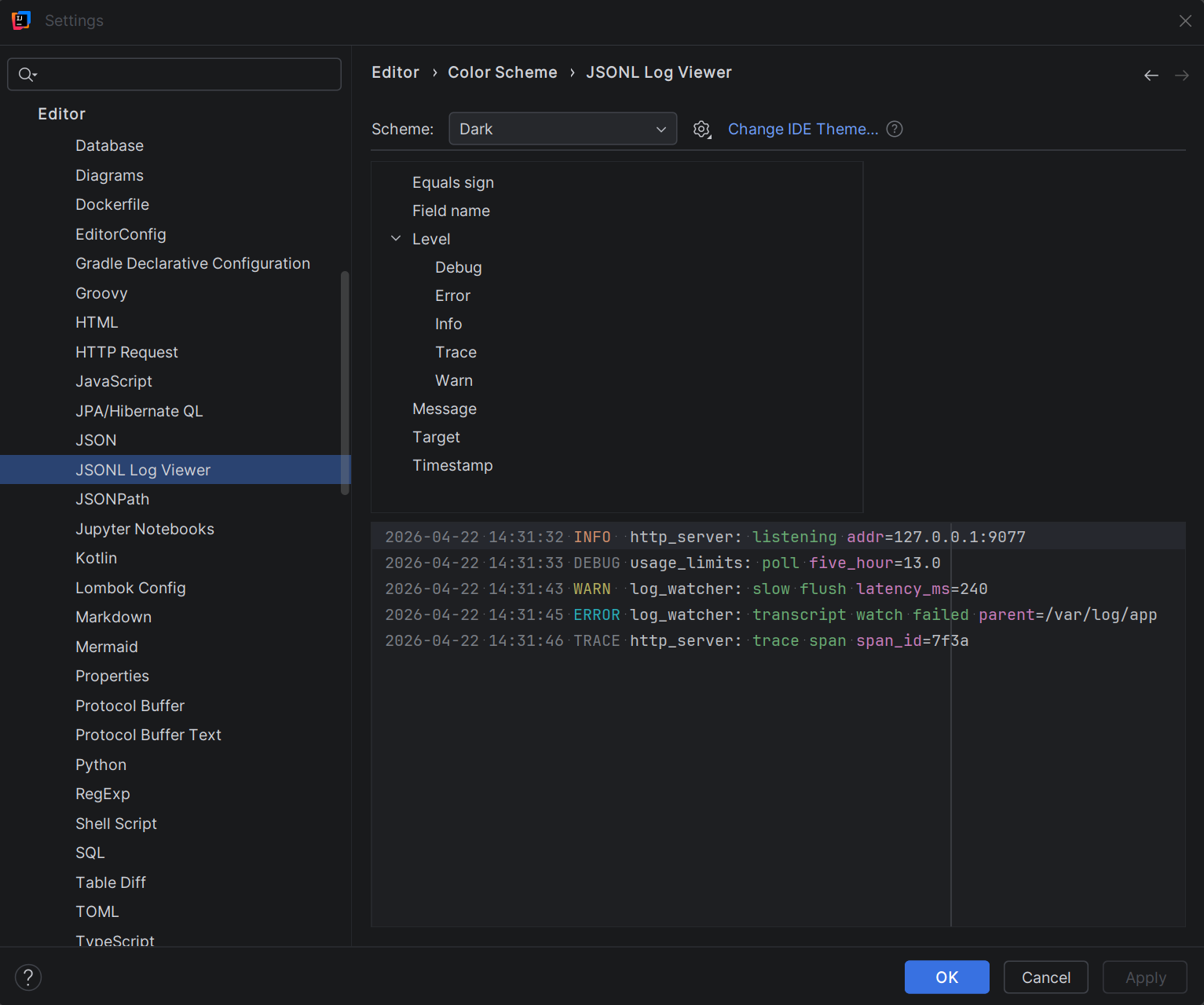
Ten semantic colour keys, each independently customizable:
- Timestamp
- Level / Error, Level / Warn, Level / Info, Level / Debug, Level / Trace
- Target
- Message
- Field name
- Equals sign
Defaults derive from language-neutral palette entries, so the plugin adapts to every theme automatically. Overriding one key behaves exactly like overriding any other syntax colour — exports, imports, and scheme sharing all work.